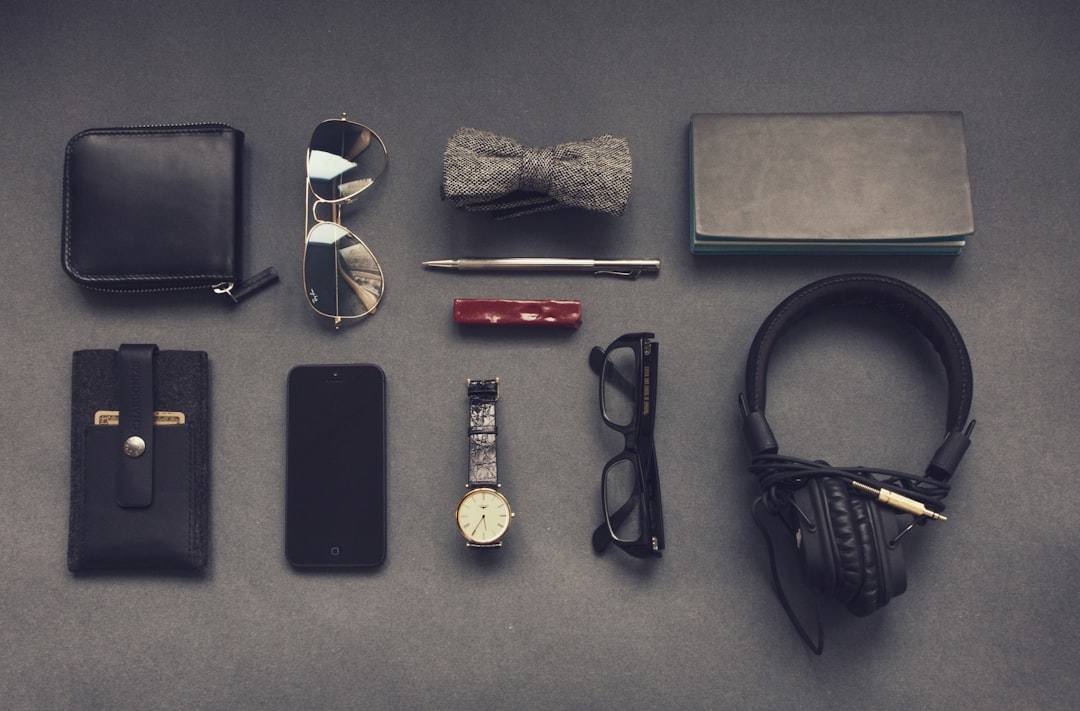
Think about how you present yourself in person: a blazer, a signature necklace, the right shoes. Your Gmail inbox is no different. This definitive guide translates wardrobe thinking into email styling — from avatars and signatures to themes, labels and digital jewelry — so your inbox reflects your taste, professionalism and personal brand. We'll cover step-by-step styling, visual and technical tools, security and backup 'care', and concrete lookbooks for common personas.
Before we begin, if you create custom visual assets for your email (headers, avatar, product shots), use our practical product photography guide to shoot like a pro and maintain a consistent look across devices.
Why Your Gmail Look Matters
First impressions in the inbox
Open rates and reply rates are influenced by trust and clarity. A consistent visual identity (avatar, signature, clear subject lines) signals professionalism and helps recipients parse your intent before they click. That first micro-interaction — seeing your name, avatar and subject line — is your digital handshake.
Personal brand: outfit for your digital self
Personal branding works like a capsule wardrobe: every piece should coordinate. Your Gmail style should echo your website, LinkedIn and social avatars. Think color palette, tone (formal vs playful) and recurring motifs. If you design bi-modal product collections, the same rules apply to switching between business and creative personas — see principles from our bi-modal collections playbook for translating dual aesthetics into consistent systems.
Practical ROI: faster decisions, fewer misunderstandings
When recipients recognize your visual cues — a consistent signature layout or templated subject prefix — they make faster decisions. That reduces clarification loops and saves time. Invest a small amount of effort (30–90 minutes) to set up templates and themes and reap compound productivity gains.
Core Elements: The Wardrobe of Your Inbox
Avatar & profile photo
Your avatar is the jewelry of the sender line — small but powerful. Use a high-contrast headshot or a simplified logo. Avoid busy backgrounds. For technical details on framing, cropping and lighting that work inside small circular crops, revisit our product photography guide which covers composition tips that translate to profile images.
Signature: the necklace that tells a story
Signatures should communicate who you are and what action you want recipients to take. Keep it to 3–5 lines: name, role, one CTA, and social icons. If you include badges (awards, verified marks, or live indicators), make sure they’re readable at small sizes — we explore the use of live badges and compact visual indicators in our piece on live badges.
Themes & inbox layout
The Gmail theme and layout are your outfit base: they set the mood. Minimal white gives a corporate crispness; rich colors read as bold creative. Match your theme to your audience and seasonality (more on seasonal updates below). For micro-interaction ideas that delight users and help discovery, see the principles in 12 small features that make discovery apps delightful — these translate well into email UX decisions like hover text and label color choices.
Choosing a Color Palette & Visual Language
Start with three colors
Pick a primary (brand/you), a secondary (accent) and a neutral. Use the primary in your avatar borders, signature accents and canned response templates. The secondary can highlight CTAs and label colors. Keep tones consistent across your email, website and social profiles for instant recognition.
Imagery: background photos and headers
If you use background images or header banners, choose images with a single focal point and plenty of negative space for legibility. For remote teams and creators who use background imagery often, check out our guide on creating immersive backdrops in virtual sceneries to select or build images that scale across screen sizes without distracting from message text.
Seasonal rotations: lookbook for your inbox
Like rotating seasonal outfits, update subtle parts of your inbox: switch theme accents for holidays or major launches. Use seasonally appropriate imagery in headers and a temporary signature banner for limited-time projects. If you want a winter feel, our guide on how to incorporate bold fashion into winter spaces (Style in the Snow) offers creative inspiration for color and texture.
Avatar & Iconography: Tiny Details, Big Impact
Headshots vs logos
Choose a headshot for personal emails and a logo for business accounts. If you use both, keep them visually related (same color scheme, same framing). A consistent visual cue helps people instantly know who’s reaching out, particularly across mobile inboxes where avatars are tiny.
Favicons and small-scale branding
Favicons and icons are your micro-jewelry — tiny but essential for recognition. For guidance on packaging small icons for cross-platform clarity, read our practical notes on offline-first favicons. That article's principles (clarity at 16x16 and 32x32, simplified shapes) apply directly to avatars and signature icons.
Avatar accessibility
Use high contrast and add alt text where possible (in linked images). Consider color-blind-friendly palettes. Small visual tweaks (higher contrast, simpler silhouettes) make your avatar readable for everyone and reduce misidentification.
Signature Styling: Fonts, Badges, and Micro-CTAs
Structure and length
A strong signature is concise: line 1 = full name, line 2 = role and company, line 3 = one-line value (optional), line 4 = CTA (schedule link or portfolio). Use separators like pipes or middots for clarity. Avoid long disclaimers buried in the signature; keep legal text minimal or attach to footers for corporate needs.
Use of badges and social icons
Badges can build trust, but too many distract. Limit to 1–2: a verified mark or recent award. For dynamic badges and live indicators (live-streams, recent talks), study the use-cases in live-streamed preprints and badge systems to implement real-time proof without clutter.
Typography and CTA design
Stick to web-safe fonts or images for complex type. If you use an image CTA (e.g., a schedule button), ensure it renders well on mobile and has an actual link fallback. Keep CTA copy short: View, Schedule, Download, or Book. Measure which CTA gets the most clicks and iterate.
Digital Jewelry: Tech Accessories That Double as Persona
Wearables as brand signals
Your tech accessories (smartwatch faces, smart rings) can be photographed and used in headers or profile shots to extend your persona visually. For inspiration, see our roundup of tech accessories that double as jewelry — these items add a subtle tech-friendly cue to a professional or creative persona.
Designing wearable jewelry and aesthetic sensors
If you’re a product designer or founder, showcase product details in a crisp close-up. The design principles from building MEMS-enabled wearable jewelry (MEMS jewelry)—like reducing visual clutter and highlighting a single feature—apply when photographing small-tech accessories for your banner or avatar.
Playful touches: matching and mascots
For personal brands, small playful cues — a color-matched dog bandana or “mini-me” matching accessory — add warmth. See fun product ideas in our piece on mini-me matching jewelry for creative ways to extend persona through props in images.
Inbox Architecture: Labels, Filters and Outfit Layers
Labels as outfit layers
Think of labels like layering a jacket or scarf — they help you react quickly. Use 4–8 core labels (Action, Waiting, Projects, Finance, Personal). Color-code them to match your palette and set rules so messages auto-sort. Keep label names short and consistent across accounts.
Filters and canned responses: presets for busy mornings
Automate routine replies with canned responses and filters. For teams or individuals who triage high volume, templates that map to label rules cut decision overhead. Combine templates with scheduled send and snooze for polished follow-up workflows.
Snooze, stars, and priority markers
Snooze acts like hanging a coat for later — use it to time responses. Customize important markers (stars, priority inbox rules). Small visual cues reduce friction and keep your inbox’s visual rhythm aligned with your daily workflow. For micro-UX ideas you can borrow, review the small feature suggestions in 12 small features that make discovery apps delightful.
Security & Care: Wardrobe Maintenance for Your Inbox
Account protection and takeover prevention
Your polished inbox is only useful if it’s secure. Implement two-factor authentication, security keys, and recovery options. For a technical threat model and practical mitigations for developer and admin accounts, see our thorough guide on account takeover threat modeling.
Backups and recovery: wardrobe repair
Back up critical messages and attachments. Consider hybrid solutions — local exports + cloud replication. If you run a small business or manage critical client communication, the review of compact backup appliances and hybrid replication offers practical hardware and strategy options for a robust recovery plan.
Disaster planning and continuity
Plan for account migration or service interruptions (e.g., moving mailing lists, changing providers). Use migration templates and scripts — our migration template includes email scripts and timelines to move members off a discontinued vendor and can be adapted for personal account transitions. Also consult the sustainable drills approach in sustainable DR drills for low-carbon, practical recovery planning.
Creating Visual Content: Shoot, Edit, and Export for Email
Shooting for small formats
Headshot and banner photography should anticipate small displays. Use strong contrast and single focal points. Our product photography guide is indispensable for creators who want crisp, consistent imagery across inbox and social touchpoints.
Editing and exporting best practices
Export images at 2x sizes and let email clients scale down; use compressed PNG or optimized JPG to keep file sizes low. For headers, 1200px width is a safe maximum for most clients; keep file size under 200KB for fast delivery.
Home studio setups for creators
If you produce regular visual content, lean on tiny, efficient studio kits. Our hands‑on reviews of compact home studio and cloud studio kits (compact home studio kits and compact home cloud studio) outline gear choices and workflows for creators on budgets — from lighting and simple backdrops to consistent color calibration.
Lookbooks & Case Studies: Three Email Personas
The Creative Freelancer
Avatar: Headshot with a bold colored backdrop. Signature: Name, role, 1-line portfolio link, schedule CTA. Theme: High-contrast accent color and an artsy header image. Labels: Leads, Projects, Invoices. Tools: Use a compact studio kit for portfolio shots (studio kit review) and apply product-photo standards from our photo guide.
The Corporate Minimalist
Avatar: Simplified logo. Signature: Formal, includes calendar CTA and company legal line. Theme: muted neutral. Labels: Action, FYI, Legal. Secure: Enforce 2FA and follow the account takeover checklist in our security guide.
The Community Curator
Avatar: Casual headshot with a community element (group photo crop). Signature: Name, community handle, newsletter subscribe CTA. Labels: Events, Volunteers, Sponsors. Use live-badge style indicators for events with the ideas in live badge systems and automate membership transitions with our migration templates.
Pro Tip: Treat one hour a quarter as your 'wardrobe edit' for your inbox — update imagery, prune labels, refresh canned responses and check backups. Small seasonal changes keep your inbox feeling intentional.
Tools Checklist: Quick Setup Guide
Visual & content tools
Use simple image editors, a compact home-studio kit for consistent shots (cloud studio review and compact kit review), and optimize icons per favicon packaging rules.
Productivity & workflow
Adopt one template system for signatures and canned replies. For focused work blocks when processing email, consider productivity tools like the Focus Companion (a hybrid timer and biofeedback coach) to maintain flow and reduce context switching.
Security & backups
Enable strong authentication, periodic exports and hybrid backups. For hardware options, see compact backup appliance strategies at this review, and model low-impact recovery drills after the sustainable frameworks at Power Labs.
Comparison: Email Accessories — Impact vs Effort
| Accessory | Impact on Perception | Setup Effort | Maintenance | Best For |
|---|---|---|---|---|
| Avatar (headshot/logo) | High — first impression | Low — single session | Quarterly refresh | All personas |
| Signature (with CTA) | High — drives action | Low — template creation | Monthly check | Freelancers, sales |
| Themes & headers | Medium — mood-setting | Medium — image creation | Seasonal updates | Creators, brands |
| Labels & filters | Medium — workflow clarity | Medium — rule setup | Monthly pruning | High-volume users |
| Backups & recovery | Low (hidden) — critical long-term | Medium — initial config | Quarterly tests | SMBs, consultants |
Advanced: Integrations, Live Indicators and Creativity
Integrating product and wearable imagery
If your brand includes physical accessories, integrate lifestyle shots (smartwatches, smart rings) into headers and avatars. Our roundup on tech accessories that double as jewelry is useful when choosing visual props that communicate tech-savvy style.
Live indicators and event hooks
For live events or time-sensitive content, add subtle live badges or event banners. Study badge usage from the academic preprint space (live-stream badge systems) and adapt for community events or product drops.
Measure and iterate
Track open and click rates after aesthetic changes and use A/B tests for subject prefixes or signature CTAs. Small tweaks in wording and imagery produce measurable lifts over weeks. Keep experiments focused: one variable at a time.
FAQ — Frequently Asked Questions
1. How often should I change my Gmail avatar or banner?
Change avatars once every 6–12 months or for major personal-brand shifts. Change banners seasonally or around key campaigns. Keep changes deliberate and document versions so you can A/B test what works.
2. Will fancy signatures increase spam risk?
Complex signatures that include many images can trigger spam filters. Use a balanced approach — text plus one small image or badge, hosted on a reliable CDN, and avoid excessive tracking pixels. Always test in Gmail and major clients before rolling out.
3. How do I secure my inbox and still keep integrations?
Use OAuth-based integrations and minimize third-party access. Enforce 2FA and review connected apps regularly. For developer or admin accounts, follow the threat modeling recommendations in our security guide.
4. Can I use my phone studio shots for my avatar?
Yes — modern phones can produce excellent avatars. Use natural light, simple backgrounds, and crop tightly. Refer to the image composition guidance in the photo guide for quick improvements.
5. What’s the easiest backup strategy for a busy freelancer?
Export important threads monthly and sync attachments to a cloud folder. Combine with periodic local exports or a compact backup appliance for critical client records; see practical hardware strategies at this review.
Next Steps & Quick Setup Checklist
Block 90 minutes this weekend and follow this checklist: 1) Update and crop your avatar (use photo guide tips), 2) Draft a 3-line signature and test on mobile, 3) Create 4 core labels and 6 filters, 4) Export important threads and set up a backup plan, 5) Schedule a quarterly wardrobe edit on your calendar.
Need inspiration or gear? Browse lightweight studio kits in our hands‑on reviews (cloud studio, compact kit) and pick a wearable or prop from our tech-as-jewelry roundup to include in one header or avatar shoot.
Final Thoughts
Your inbox deserves the same considered styling as your wardrobe. The right avatar, signature, theme and label system project clarity, trust and personality. Treat your inbox like a capsule collection: build a small number of consistent elements that work together and update them deliberately. With the security and backup practices in place, you’ll have a polished, resilient email persona that looks good and performs even better.
For planning migrations or membership moves, adapt our migration template and for long-term continuity, pair backup appliances with sustainable drills from Power Labs. When in doubt, start small and iterate.
Related Reading
- Top 10 Tech Accessories That Double as Jewelry - Pick wearable props that subtly signal your tech-savvy style.
- Designing MEMS-Enabled Wearable Jewelry - Learn how micro-sensor aesthetics inform small-product photography.
- Virtual Sceneries: Creating Immersive Backgrounds - Background images that scale and stay crisp across meetings and email headers.
- Photo Guide: Market Product Photography that Sells - Practical shooting and editing tips for creators.
- Review: Compact Self‑Hosted Backup Appliances - Hardware and replication approaches for resilient email and asset backups.